

What's inside this post: Hide
Kitchen*, my absolute favorite client portal tool, has rolled out a batch of updates, and they fix some necessary things!
Some are under-the-hood changes you'll never "see," while others change what your clients see (which are the more exciting updates).
In this post, I'll walk ya through the updates inside my own Kitchen* portal to show you what changed, where to find each setting, and how I've set things up for my custom website projects. If you'd rather watch than read, the full video is right here. 👇🏼
*Heads up: links marked with an asterisk are affiliate links. If you buy through one, I may earn a commission at no extra cost to you. I'm a Kitchen affiliate, not sponsored by them, and I only recommend tools I actually use. ☺️
Why I run my client projects in Kitchen*
If you've ever tried running client projects out of Notion, ClickUp, Trello or Asana, you already know the drawbacks. Those tools are great for us. For clients, they're one more piece of software they've never heard of, will probably never use again, and will start getting marketing emails from now on, forcing them to unsubscribe.
Kitchen* is a white-labeled client portal tool, which means my clients see MY branding, not Kitchen's. Each client gets their own folder with a place to share files, a conversation thread for live-chat style messages (that also allow replies via email), and a task board for the project itself. It's built for working with our clients, not just tracking work behind the scenes for ourselves.
It also has a free plan, and a lifetime option for those of us who'd rather not add another monthly subscription to our enormous pile. More on that lifetime option further down, because it won't be around forever! 😬👇🏼
Update 1:
Kitchen* is now GDPR compliant
This one's the least exciting, but arguably the most important.
Kitchen is now fully GDPR compliant, and its updated Privacy Policy and Data Processing Agreement took effect in September 2026.
In plain terms, that means Kitchen now has a proper data processing agreement in place, updated privacy policies, and cookie consent controls and data practices to match. You may not see any of that while you're working, but if you live somewhere that takes GDPR seriously, or your clients do, this may have been a deal breaker before. Now it doesn't have to be!
FYI: I'm not a lawyer, so if GDPR applies to your business, check what it means for your own setup.
Update 2:
A fully customizable client login page
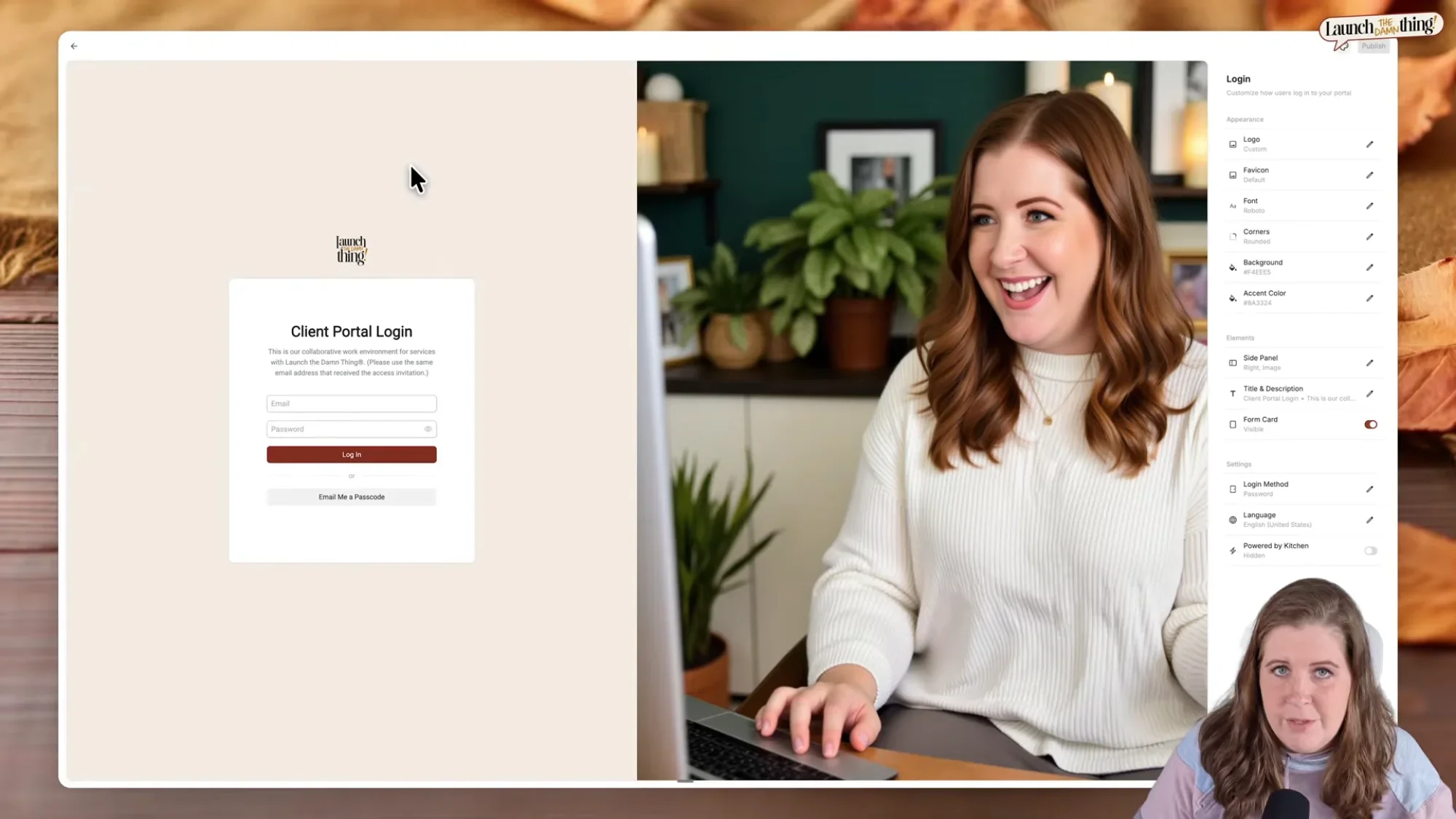
This is the update you & your clients will actually see. The login page has always been brand-able, but now you get a lot more design control over it.
To find it, go to Settings → Branding → Login. You'll see a live preview of the page everyone sees when they log in, you included.
Here's what you can customize:
Logo & logo size
Title & description - a short line explaining what this page is & maybe who it's for
Text color, font style & favicon (fonts come from Google Fonts!)
Rounded or squared corners
Background color or photo, plus an accent color for buttons and links
A side image, aligned left, right or none at all; upload your own or pick one from Unsplash, then choose fill, fit, original or a custom width.
A card background color behind the login form
Login method: password, or one-time passcode, or both
The "Powered by Kitchen" badge, on or off
Here's how I set mine up:
Title: "Client Portal Login." Most of the people logging in are my clients, so I named it for them. I already know it's my account, so this wording is for them
Badge: off. My clients don't need to know what's powering their portal. If they ask, I'll happily tell them (and send my affiliate link!)
Login method: both. A client logging in for the first time clicks "Email me a passcode" and gets a link to get in, no password needed. They can set a password later in their profile if they want one, and even turn on two-factor authentication.
Corners & image: rounded corners, plus an image of me
Once you publish your changes, everyone who logs into your portal sees the same branded login page. 👏🏻 It's a little-big change!
Update 3:
Client's visibility (to each other)
THIS is one of updates I've been waiting for, and it's a teeny tiny detail, but SO important for the way I've set up some of my support resources.
To explain why it matters, I need to show you how my portal is set up, first.
Each active client gets their own folder with a file-sharing folder, a conversation for messages, and a task board for the project. Outside those client folders, I also have support resources that most clients can access, including:
A portal guide video (a welcome tour)
My support hub (a Notion page embedded in Kitchen)
A support ticket form, which creates a conversation, which I can track on an internal support tickets task board
Booking calendars for Design Days and 1:1 Live Support sessions
A scheduler login where clients can see their past appointments
The thing is, I only want to keep one copy of each of those pages and give every client access to it, rather than making 50 copies of the same embeds sprinkled throughout all my project folders. That way, when one of those links needs to change, I can update it in one spot and I don't have to go track down all the places I've used that embed link before.
The catch is that, before, anyone with access could see the other users' initials or names in the top right corner of those shared pages. Nobody ever complained, but I didn't love that for them. I'm not trying to keep secrets from anyone, or hide who I'm working with from each other, BUT privacy just seems like a reasonable default.
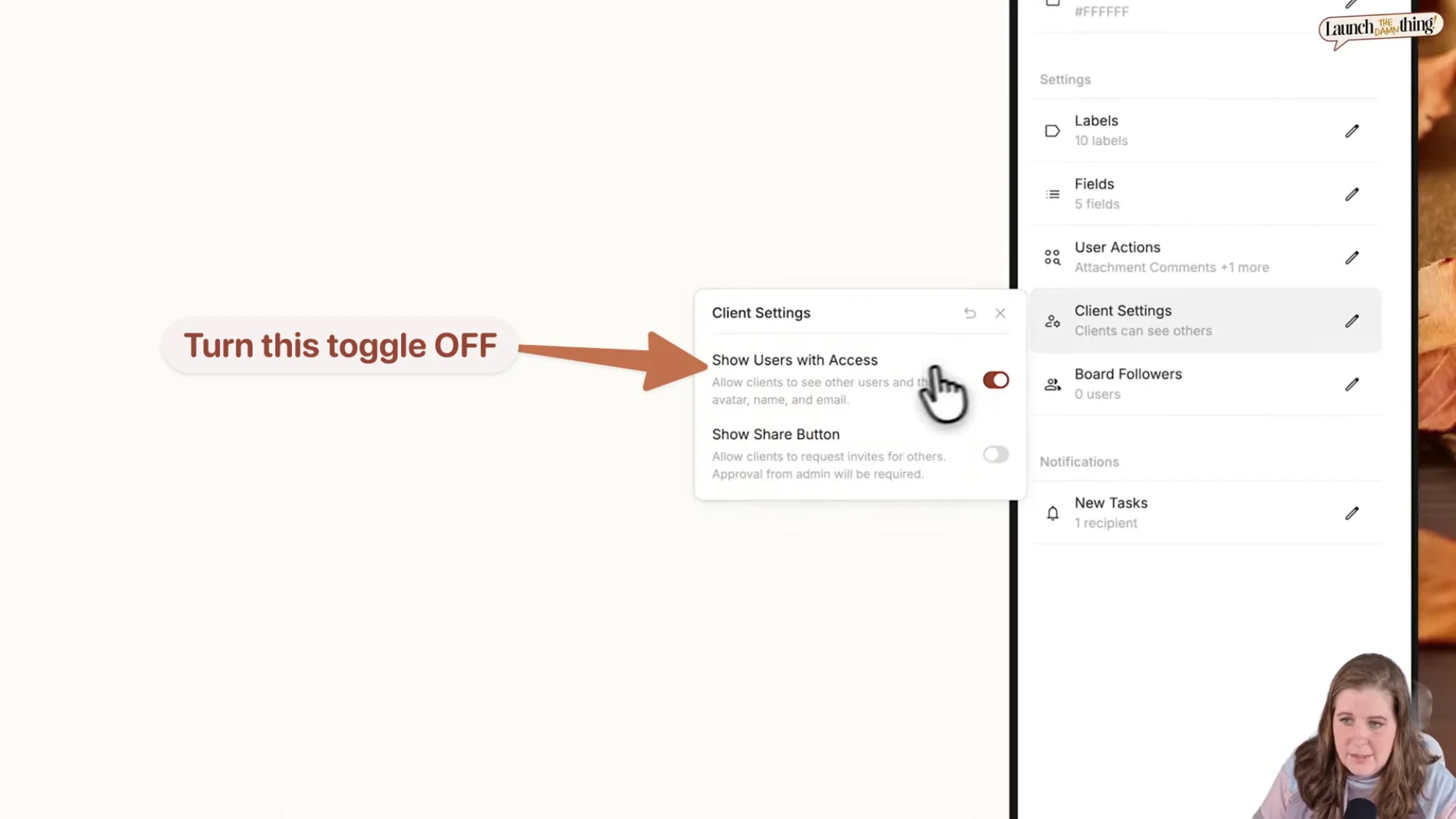
Now there's a fix! In the customize settings for any resource page in the portal, open the Client Settings option and turn OFF 'Show Users with Access.'
As the owner and admin, you can still see everyone.
Your clients will only see themselves.
My only remaining wish list item on this topic is the ability to set resources as 'public' for clients or internal members, so I don't have to add multiple people one by one if I don't want to.
Until then, this is a great start. (If you want more on controlling who sees what, my video on assigning different permission levels to each client goes deeper.)
More ways to customize boards, conversations & folders
The rest of the updates are a pile of smaller customization options which us designers really appreciate! Some existed before but were scattered around; now they live together in each item's customize menu, which makes them a lot easier to find.
For Task Boards. You can choose whether clients in a project can see each other, decide what clients are allowed to do on the board, edit fields and labels, and set colors for cards and lists. You can even add an image or texture to the background, or upload your own graphic. All from the same styling panel.
For Conversations. You can now set separate colors for your client's messages, your own messages, and your internal notes. (Notes are private messages to yourself that clients can't see.) Customizing these colors helps me tell them apart at a glance. You can also write a custom message for an empty conversation and choose its description and icon.
For Folders. You still get the title, description, icon and color options, but now you can set a default folder icon and color too. Until now, every new folder we made in the portal started out bright elementary school-bus yellow, which matches nobody's brand (mine included), so I was changing it every single time. It's a small detail, but the time saved in setting a default adds up! Folders also get:
A cover image or graphic
A default layout (I prefer the grid view, which works more like big buttons), plus whether clients can switch layouts in their view
A custom empty state
Per-folder toggles for the search bar, sorting, file comments, & file approvals
If you'd like to see how I set up a whole client project from a template so you're not redoing this every time, here's my walkthrough on setting up a client project in 10 minutes or less.
IMPORTANT:
Kitchen’s* lifetime plans are retiring!
Kitchen announced that its lifetime plans are retiring soon. There's no official date slated for that yet, but they won't be around forever.
If you're curious and want to try it out, start with the free plan first to see whether it fits how you like to work with your clients. If it feels good, a lifetime plan means no ongoing subscription.
And there are two lifetime tiers: one for up to five internal team members (you plus a VA, OBM or assistant designer, for example) and one for unlimited team members for larger agencies. Clients are unlimited and free on every plan.
Check current pricing on Kitchen's website at Kitchen.co*
November 2026 only: Kitchen is offering 20% off lifetime plans with code BF20.
If a portal tool has been sitting in your "someday" wishlist but all the portal apps you've seen are expensive AF or severely ugly & useless, this is the nudge you needed to take it off your wish-list-shelf.
Want my whole client portal system?
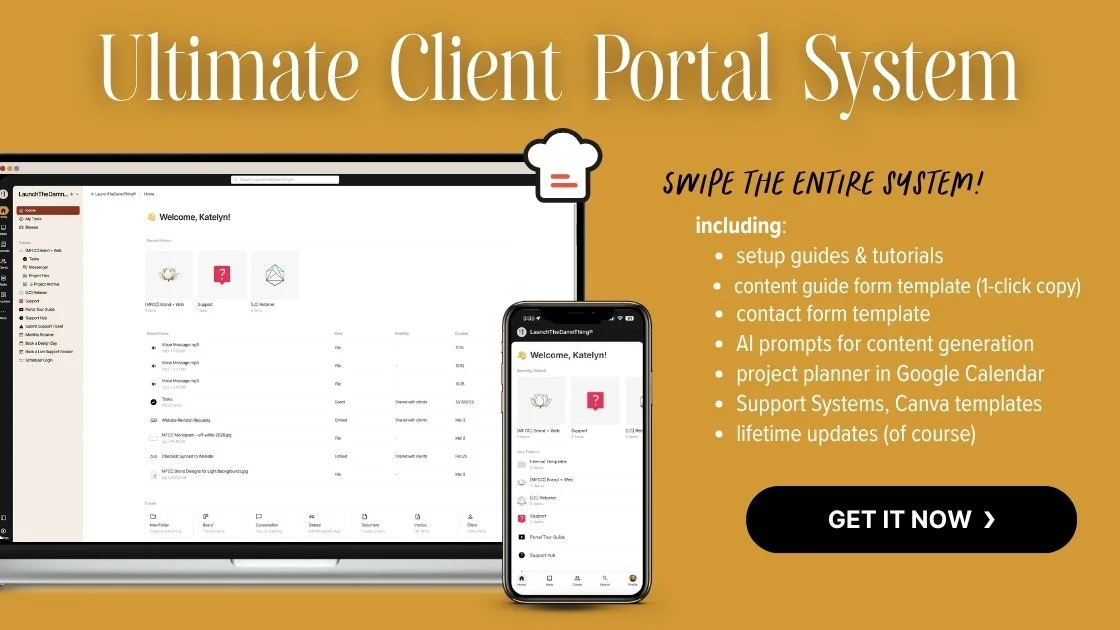
If you sign up for Kitchen and feel a little overwhelmed staring at an empty account, that's exactly why I made the Ultimate Client Portal System. It's the same portal setup I use for my own custom website projects, split into two parts:
Part 1 (the tech side): step-by-step Kitchen tutorials for setup, settings and client invites, task boards, conversations, file sharing, docs, quotes and invoices.
Part 2 (the systems side): my portal setup guide, project templates for websites and VIP days, my content guide form template with AI prompts, contact form templates, Zapier templates that auto-create client folders, and my support systems.
Grab one part, or both, and if you start with one, you can add the other later by paying the difference. Kitchen itself is bought separately, but the free plan works to start.

Kitchen.co FAQs
Is Kitchen.co free?
Kitchen has a useable free plan with limited customizations, and that's where I'd start if you're just testing it out. It also has paid options, including lifetime plans that are retiring soon. Since pricing changes without notifying me (😂), check Kitchen's site for current details before you jump in blind.
Can I remove Kitchen's branding from my client portal?
YES (on paid plans). Kitchen is a white-label portal, so your clients see your logo, colors, email address, and branding throughout. On the login page specifically, you can even switch the "Powered by Kitchen" badge on or off under Settings → Branding → Login.
Do my clients have to pay for Kitchen or create a password?
NO, to both! Clients are unlimited and free on every plan; the team-member limits only apply to people on your side, like a VA or assistant designer.
If you allow one-time passcodes, a client can log in by clicking "Email me a passcode" and following the link in their inbox. They can also set a password later if they prefer, and even turn on their own Two-Factor Authentication for their profile in your portal.
Can clients see each other inside my Kitchen portal?
Only if you allow it. On resources multiple clients all have access to, open the Customize menu and look for Client Settings, then turn OFF 'Show Users with Access.' As the admin, you'll still see everyone that access, but each client will only sees themselves.
Is Kitchen.co GDPR compliant?
Kitchen announced their compliance in September 2026. It has updated its privacy policy and data processing agreement, and added cookie consent controls. If GDPR applies to your business, review Kitchen's Privacy Policy and Data Processing Agreement yourself, and check with a legal professional about your own obligations.
Does Kitchen replace a CRM like Dubsado or HoneyBook?
Not in my setup. I use Kitchen as the client-facing portal where the actual project work and delivery happens: files sharing, messages, and tasks.
My CRM still handles the business side, like inquiries, contracts, timed email reminders, and payments. Plenty of designers run both side by side, and Part 2 of my course covers how these pieces fit together.
Is Kitchen included with the Ultimate Client Portal System?
No. I'm not part of Kitchen's company, so I don't have the authority to gift you a license to use it. My course teaches you how to set up and run a client portal in Kitchen, but the Kitchen software itself is purchased separately so you can choose your own license. The free plan is enough to start following along though.
Is Kitchen sponsoring this post?
Nope! I am a Kitchen affiliate, which means I earn a commission if you buy through my link, at no extra cost to you. But Kitchen didn't pay for this post or ask me to write it. I've just been using it for my own client projects and genuinely LOVE using it in my own business, which is why I can't shut up about it. Not enough people know it even exists IMO!
